Why This Guide Exists
The K3L multi-function tester is one of the most capable all-in-one diagnostic tools available for Antminer hashboard repair. It tests ASIC chips, reads and writes EEPROM data, checks fans, and verifies PSU output — all from a single handheld device. The problem is that it ships with a Chinese-only manual, and there is essentially no English documentation for it anywhere online.
This guide fixes that. We translated the original K3L manual and added bench context from daily use in our Shenzhen repair workshop. If you just bought a K3L and are staring at four unlabeled buttons, start here.
What the K3L Replaces
The K3L is the successor to the K8 and K9 testers. The main upgrades are faster chip scanning, expanded model support (S21 and Hydro series added), and a new fan test function with a dedicated fan adapter that was not available on previous models.
If you already own a K8 or K9 and are deciding whether to upgrade, the K3L is worth it if you service S21/T21 or Hydro units regularly. For shops focused on S17/S19 only, the K9 still covers most of the same ground.
Physical Layout and Interfaces
The K3L has five physical connections on the body:
| # | Interface | Purpose |
|---|---|---|
| 1 | Adapter board connector port | Connects to the hashboard via the adapter/riser board |
| 2 | Hashboard connector port | Direct connection to the hashboard (force plate / hash plate) |
| 3 | Red signal indicator | RI signal probe — lights when signal is detected |
| A | Power switch | Master on/off |
| B | Power input (12V DC) | External 12V DC power supply input |
The tester is powered by an external 12V DC supply — the same type of bench supply you likely already have. It does not run from the miner's own PSU during testing.
Button Controls
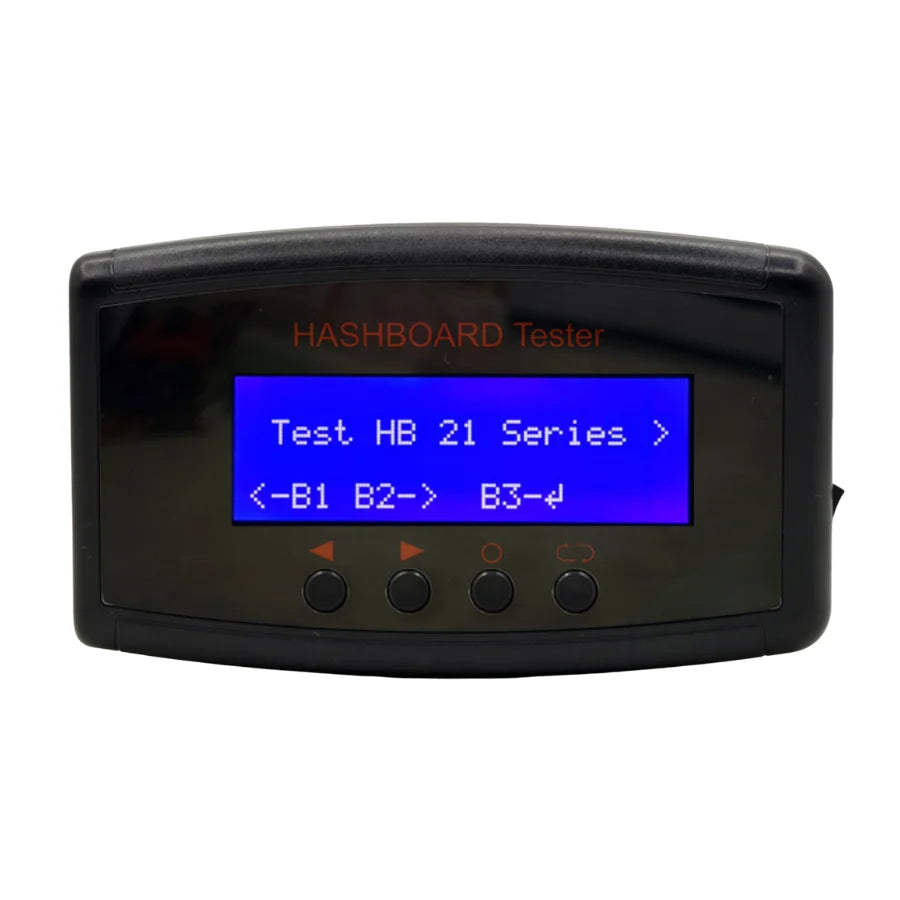
The K3L has four buttons. All navigation and test execution goes through these four:
| Button | Label | Function |
|---|---|---|
| B1 | Select Left | Navigate left through menus / select previous option |
| B2 | Select Right / Store | Navigate right through menus / store current value |
| B3 | Confirm | Enter a mode or confirm a selection |
| B4 | Return | Go back to previous screen |
Tip: in some test modes (fan testing in particular), B1 and B3 double as speed-control inputs instead of navigation. Context matters — the display will show you what each button does in the current mode.
Supported Antminer Models
The K3L auto-detects the board series when a hashboard is connected. It currently supports:
Standard air-cooled: S21, T21, S19Kpro, S19jxp, S19, T19, S19pro, S19jpro, S19j, S19+, S19XP, S19a, D7, L7, KS3, KS5, E9, E9pro, S17, S17pro, T17, S17+, T17+, S17e, T17e
Hydro series: S19XP+ Hyd, S19XP Hyd, S19Pro+ Hyd, S19Pro Hyd, T19Pro Hyd, S19eXP Hyd, S19 Hydro, S19Pro Hydro
This is the widest Antminer compatibility of any tester in the K-series line. Note that the K3L is Antminer-only — for Whatsminer hashboards, you need a dedicated Whatsminer test fixture.
Mode 1: TEST ASIC — Chip Count Verification
This is the mode you will use most. TEST ASIC scans a connected hashboard and counts the number of responsive ASIC chips, comparing against the expected total for that board model.
How to run it:
- Connect the hashboard to the K3L via the adapter board connector (port 1) or the direct hashboard connector (port 2), depending on the board type.
- Power on the K3L. The tester will auto-detect the connected board series and enter the test interface. If auto-detection fails, you can manually select the series from the menu using B1/B2 to scroll and B3 to confirm.
- Select TEST ASIC from the mode menu using B1/B2, then press B3.
- The tester will begin scanning. The display shows the running chip count as it progresses through the board.
- When complete, the display shows chips detected vs. expected. For example, an S19pro hashboard should report 110 chips per board (660 total across 6 boards). Any shortfall indicates faulty or non-responsive chips.
You can press B1 to re-run the test multiple times on the same board. Running 3–5 consecutive scans is good practice — an intermittent chip may pass on one scan and fail on the next, so a single pass is not conclusive.
Mode 2: TEST TEMP — Temperature Verification
TEST TEMP reads the onboard temperature sensors and displays the current hashboard temperature. This is useful for verifying thermal paste application after a rework, confirming the board is not overheating under a controlled bench load, or diagnosing a board that throttles in production despite apparently normal fan operation.
How to run it:
- With the hashboard connected, select TEST TEMP from the mode menu using B1/B2, then press B3.
- The display shows the real-time temperature reading from the board's sensors.
- Press B4 to return to the main menu when done.
Keep in mind that bench temperature ≠ production temperature. A board that reads 35°C on the bench with no airflow will run significantly hotter inside an enclosed miner under full hash load. TEST TEMP is a sanity check, not a thermal simulation.
Mode 3: REPAIR EEPROM — Read and Write Hashboard Data
EEPROM stores the hashboard's identity data — serial number, board revision, calibration parameters, and frequency tables. REPAIR EEPROM lets you read this data (back it up) or write new data (restore a corrupted EEPROM or synchronize serial numbers after a board swap).
How to run it:
- Select REPAIR EEPROM from the mode menu using B1/B2, then press B3 to enter.
- Press B1 to read the current EEPROM data from the connected hashboard. The tester will display the stored values.
- Press B2 to write EEPROM data to the board. This overwrites the existing EEPROM content with the data currently stored in the tester's memory.
- Press B4 to return.
When you need this mode:
- A hashboard's EEPROM is corrupted and the control board can't identify it — the miner reports the board as "unknown" or refuses to initialize it.
- You're swapping a hashboard between miners and need to synchronize the serial number so the control board accepts the replacement board without triggering a mismatch error.
- You want to back up a working board's EEPROM before performing a chip rework, so you can restore it if something goes wrong.
A key advantage of the K3L's EEPROM function is that it works standalone — no PC connection and no PSU connection required. Previous workflows for EEPROM editing often required a laptop running serial software plus a powered-on miner, which made field repairs impractical.
Mode 4: FAN TEST
The fan test function is new on the K3L (not available on the K8 or K9). It uses a dedicated fan test adapter that connects to the tester body.
How to run it:
- Connect the fan adapter board to the K3L's adapter board port.
- Connect the fan you want to test to the fan adapter. The K3L supports KF2510 4-pin, KF2510 6-pin, and 5557 Square 4-pin connectors — this covers virtually all current Antminer and many third-party replacement fans.
- Select FAN TEST from the menu, then press B3 to enter.
- The display shows: FAN-OFF/FAN-ON status, Freq (frequency), PWM %, and RPM.
- Use B1 and B3 to adjust fan speed up and down. The tester drives the fan at the selected PWM duty cycle and reads back the actual RPM from the tach signal.
Important: Fan testing runs in a non-stop loop. The fan will keep spinning at the set speed until you press B4 to exit. Test one fan at a time.
What you're looking for: a fan should spin up smoothly at low PWM, reach stable RPM proportional to the duty cycle, and report a clean tach signal (no erratic RPM jumps). A fan that reads 0 RPM despite being powered, or that shows wildly fluctuating RPM, has a bad tach wire or a failing bearing.
Mode 5: PSU TEST
PSU test mode verifies that a Bitmain power supply is delivering the correct output voltage.
How to run it:
- Connect the adapter board between the K3L and the PSU's 12V output.
- Power on the PSU.
- Select PSU TEST from the menu. Use B1/B2 to select the board type (this sets the expected voltage reference).
- The display shows the measured output voltage. A healthy PSU should read in the 10.0–12.5 V range depending on the model and load state.
- If the display shows "NO PSU", the PSU is either not connected, not powered on, or has a fault preventing output.
PSU test is a quick pass/fail check. For deeper PSU diagnosis (ripple measurement, load testing, feedback loop analysis), you still need a bench multimeter and oscilloscope. But for triage — especially when you have a stack of returned miners and need to sort "bad PSU" from "bad hashboard" — the K3L's PSU mode saves significant time.
K3L vs. K8 vs. K9: Which One Do You Need?
| Feature | K8 | K9 | K3L |
|---|---|---|---|
| ASIC chip count test | Yes | Yes | Yes |
| Temperature test | Yes | Yes | Yes |
| EEPROM read/write | No | Yes | Yes (standalone, no PC needed) |
| PSU test | Yes | Yes | Yes |
| Fan test | No | No | Yes (KF2510 + 5557 connectors) |
| S21 / T21 support | No | Limited | Full |
| Hydro series support | No | No | Yes |
| RI signal probe | No | No | Yes |
If your shop mainly services S17/S19 air-cooled units and you already own a K9, the upgrade is optional. If you handle S21, Hydro models, or want built-in fan testing without a separate rig, the K3L is the right move.
Practical Tips from the Bench
Run multiple ASIC scans. A single chip count test can miss intermittent failures. We run 3–5 consecutive scans on every board. A chip that passes 4 out of 5 times is still a chip that will fail in production.
Back up EEPROM before any rework. It takes 30 seconds and saves you from having to source a donor EEPROM file if your write goes wrong or the chip replacement disturbs the data.
Fan test before reassembly. It's much faster to test a fan on the K3L bench adapter than to install it in the miner, power on, and discover it's dead. Build fan testing into your reassembly checklist.
PSU triage in batches. When processing returned miners, run every PSU through PSU test mode before you even open the miner. You'll sort out 30–40% of "dead miner" tickets in under a minute each.
The LYS Technical Team is based in Shenzhen, China, where we operate a dedicated ASIC mining hardware repair workshop. With over a decade of hands-on experience repairing Antminer, Whatsminer, and Avalon mining equipment, our team supplies spare parts and repair services to mining operators in over 40 countries. Every article we publish is written and reviewed by working repair technicians.
Get the K3L and Start Diagnosing
We stock the K3L alongside the full K-series line (K8, K9) plus chip-specific test fixtures for every Antminer generation.
→ Buy the K3L Multi-Function Tester
→ Browse All Test Fixtures & Diagnostic Tools
For bulk orders, compatibility questions, or help choosing between the K8, K9, and K3L, contact us at contact@lys-sz.com or via WhatsApp.